
Add a Stream
Objective:
Add a stream to the Scholar Course Page.
Note: Only an instructor can add streams to the Scholar Course Page. However, students can add their own streams to their Scholar Home Page.
Steps:
- On a scrap piece of paper, jot down a list of topics/categories to which your students' course-related bookmarks will likely belong.
Example for a health course:
Exercise
High-fiber diets
Stress
Dieting
Vitamin supplements
Part 1 - Set Parameters for a Search
- On the Scholar Course Page, click Add a Stream.

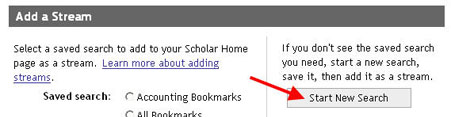
- On the Add a Stream screen, click Start New Search.
- On the Advanced Search screen:
Complete the Keywords and Tags fields for the first search you want to add to your Scholar Course Page as a stream.
Select your course name from the Course Tags drop-down menu.
Click Add Criteria, select Institutions, and then select McDaniel College from the drop-down menu to limit the contents of the search to bookmarks added and tagged by McDaniel College students/faculty/staff.
Note: If you wish to limit the contents of the search to bookmarks added only by students enrolled in your course, select User Names. Then enter your students' user names in the User Names field.
Type a name for the search in the Save Search As field; click Save.
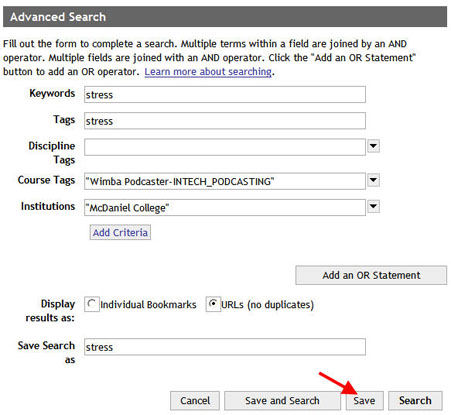
In the screen above, the search will contain bookmarks with "stress" as a keyword and/or "stress" as a tag. It will only contain bookmarks tagged for the "Wimba Podcaster" course and added by McDaniel College students/faculty/staff.
- Click the Course tab to return to the Scholar Course Page.

- Repeat Steps 2-5, as needed, to set search parameters for additional streams to be added to your Scholar Course Home Page.
Part 2 - Place a Stream on the Scholar Course Page
- Click the Course tab to return to the Scholar Course Page.
- Click Add a Stream.
- From the Saved Search list, select one search to add as a stream to your Scholar Course Page.
- Type the number of results (i.e., bookmarks) that you want the Stream to display on the Scholar Course Page; click Add this Stream.
Note: Regardless of the number of results you choose to display in the stream, all tagged bookmarks that meet the search parameters you set for the Stream will be included; users will just have to click to view more.
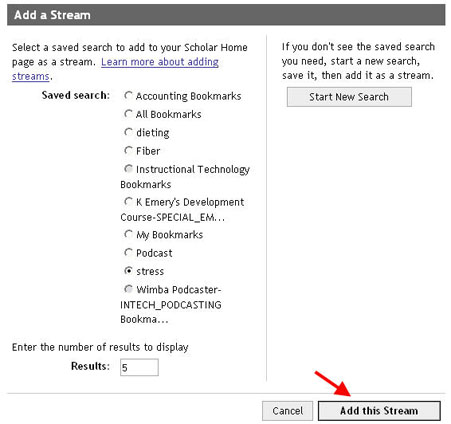
In the screen above, the "stress" search will be added as a stream to the Scholar Course Page; five results (i.e., bookmarks) will display.
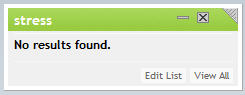
In the screen above, the "stress" stream is on the Scholar Course Page.
Note: The stream will be empty until you or a student adds a tagged bookmark that meets the search parameters you set for the stream. (See Add a Bookmark for instructions).
- Repeat Steps 10-12, as needed, to add additional Streams to your Scholar Course Home Page.