
Add a Bookmark
Objective:
Add a tagged bookmark.
Note: Students and instructors can add any number of bookmarks. The stream(s) a bookmark displays on depends upon which tags were added to the bookmark.
Steps:
- In Scholar (or on the Scholar Course Page), click Add a Bookmark.

- Complete the fields on the Add a Bookmark screen; click Save.
Note: If this bookmark is part of a course-related assignment, be sure to include in the Tags field a term/topic/category that has been specified or agreed upon by the class and/or instructor. Also be sure to select the course name from the Course Tags drop-down menu.
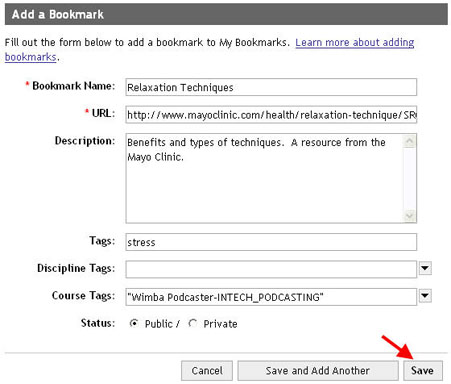
In the screen above, a bookmark named "Relaxation Techniques" will be tagged with "stress" and added to the "Wimba Podcaster" course.
- Repeat Steps 1 and 2, as needed, to add additional bookmarks.