|
At
the end of this workshop, participants will be able to work
with the Custom Animation panel to animate objects on a PowerPoint
slide and:
- know
to build a folder first
- edit
entrance, exit, and motion settings
- know
the difference between "After Previous" and "With Previous" in
an animation sequence
- build
a fade in / fade out title sequence.
|
|
| A.
THE BASIC TOOLS for MULTIMEDIA |
The
most important thing to remember about adding media to a
PowerPoint presentation is to:
- FIRST make a folder
- then put your PowerPoint presentation in that folder
- then put your media in that folder
- and THEN (and only THEN) do you insert the media to your
slides
Movies
and sounds link; they don't embed (like images do, for instance).
So you always want a folder that contains your presentation
and your media files. Later, if you transport the presentation,
you should transport the entire folder at the folder level.
For example, you would burn the entire folder--not just the
contents, but the entire folder--to a CD (or copy to a
flash drive).
To Add a Sound or Movie
- First make certain the media is in the same folder as your
PowerPoint presentation
- then click
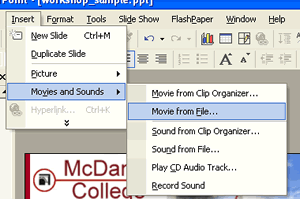
on (Toolbar) Insert --> Movies and Sounds
- select
"Movie from File" or "Sound
from File" and locate the media
already in your folder
To Animate Objects on a Slide
Any object you put
on a slide can be animated.
- Text, images, and drawings can be
made to move, slide, wipe, fade in, fade out, zoom in, zoom out,
dissolve, swivel, etc.
- Sounds can be put on the animation timeline and be edited
to start, stop, replay, etc. according to timing settings you
put on them.
The
key tool for slide animations is Custom Animation Panel, which can be opened by clicking on Toolbar SlideShow--> Custom
Animation
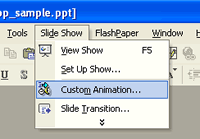
The Custom Animation Panel will show up on the
right side of the development window. But the tools will be grayed
out (not active) until an object is on the slide and selected. |
| B.
ADD a FADE IN / FADE OUT Title |
1.
Add text to the slide
- Open a new slide
- Click on the Text Icon on the Drawing Toolbar
- Click
on the slide and enter some title text (suggestion: make
it Ariel 32 and position it in the center of the slide
2.
Animate an Entrance Fade In
- If
the Custom Animation Panel is not open, open it by clicking
on (Toolbar) Slideshow --> Custom Animation
- Click on the text and select it. You know it is selected
if you see it outlined with the slash bars
and handlebars (like below).

- In
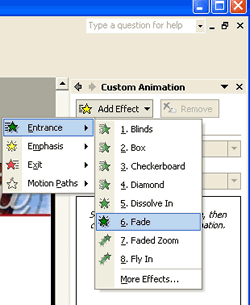
the Custom Animation Panel, click on Add Effect --> Entrance
--> Fade In
- Note:
effects tools show up based on frequency of use, so Fade may
not be in the top list on your drop down menu. You
may have to click on "More Effects..." to
find the Fade effect
The
Entrance Fade Effect is now associated with the Title Text,
but we want to edit the effect.
3.
Edit the Entrance Fade Effect:
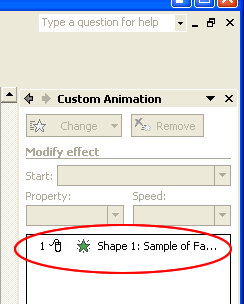
- Double
click on the animation effect list (circled below) in the Custom
Animation Panel (in our example, it is number
1)
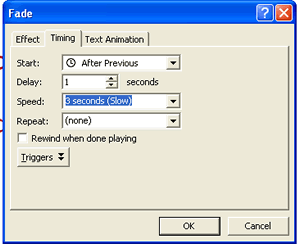
- This brings up an effects editing box
- Click on the Timing Tab
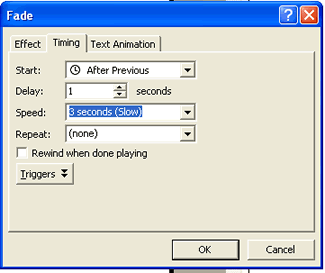
- Select "After
Previous" next to Start
- Select
1 second next to Delay
- Select 3
seconds (Slow) next to Speed
Note:
- "After
Previous" means that the effect starts automatically
after the previous event, which, in this case, is the
slide opening up.
- "With
Previous" is important to select
if the effects are accompanied by music. In that case,
you want two animations occurring at once. In other
words, if you want music to play while animations are
occurring, the animations must have the
"With Previous" start selections. And you use
the Delay field to have the play in sequence.
|
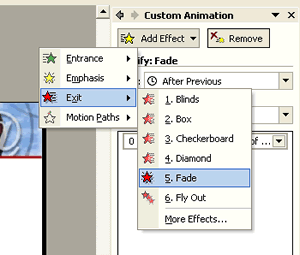
4. Add an Exit Fade Effect
- Click on the Title to select it (slash bars and handlebars)
- In the
Custom Animation Panel, click on Add Effect -->Exit-->Fade
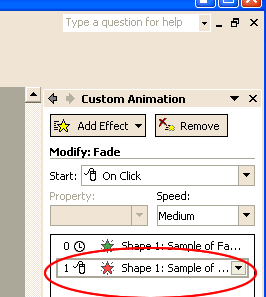
5. Edit the Exit Fade Effect
- Double
click on the Exit Fade Effect (below) in the Custom Animation
window.
- In
the Exit Fade editing box, click on the Timing
Tab
- Select After Previous in the Start Box
- Select 1 second in the Delay Box
- Select 3 seconds (Slow) in the Speed
Box
6. Set Automatic Slide Transmission to Automatic
In most cases, you would want an animated title sequence
to progress automatically to the next slide. To make that automatic:
- Click on (Toolbar) Slide Show --> Slide Transition
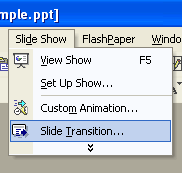
- That opens the Slide Transition Panel (to
the right of the development window; in the same place that
the Custom Animation Panel appeared).
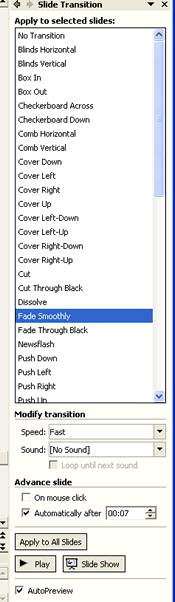
Whatever slide transition type you select (you could
select "No Transition" at the top), it will be applied
to just this particular slide UNLESS you
click on the Apply To All Slides button at the bottom of
the panel. In this case, we've selected "Fade Smoothly"
- To make the slide advance automatically,
- Scroll down to the bottom of the panel
- Make
certain "On Mouse Click" is unchecked and "Automatic"
is checked
- Enter an appropriate time for the slide to progress.
In this case, select 7 seconds (the time it will take for
the title to fade enter and fade exit).
|
|
|
|