We
have suggested that you bring 2 or 3 sample papers to this
workshop. If you did not, then go to Term-Papers.US and
download one of the samples.
|
- Add SafeAssign to Control Panel
- Use DirectSubmit
- Use SafeAssignment
- Submit Paper as Student
- Access SafeAssignment from Gradebook
|
What Is SafeAssign?
SafeAssign is a plagiarism prevention service--offered by Blackboard--to help educators prevent plagiarism by detecting unoriginal content in student papers. In addition to acting as a plagiarism deterrent, it also has features designed to aid in educating students about plagiarism and the importance of proper attribution of any borrowed content. SafeAssign can be used in two ways.
- DirectSubmit, where Instructors upload papers directly, without student involvement.
- SafeAssignments, where Instructors let students submit papers, which will then be delivered to instructors through Blackboard, together with the SafeAssign Originality Reports.
CAVEAT
Deciding whether or not to require students to upload to the SafeAssign database is a matter that should be determined by each individual instructor.
For the record, we (Department of Instructional Technology) have long been uncomfortable with students being required to turn in papers to a central database. This was the primary reason we preferred not to support Turnitin.com. Our current opinion is that the DirectSubmit is the best way to use this tool. We realize, however, a number of faculty may disagree and wish to require their students to turn in work to SafeAssign as a condition for turning in the assignment.
So here we demonstrate how to use both ways.
|
|
| 1.ADD SAFEASSIGN TO YOUR CONTROL PANEL |
SafeAssign should show up in your Control Panel under Course Tools.
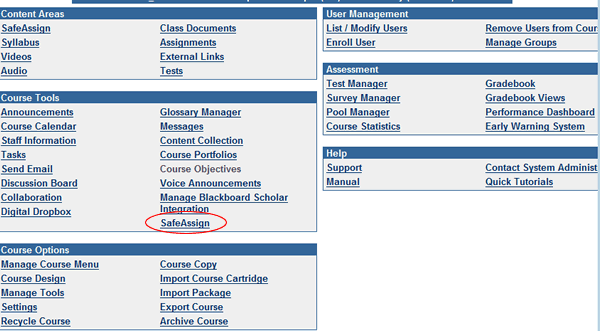
If it does not....
To Add SafeAssign to Your Control Panel:
- Control Panel --> Manage Tools --> Building Block Tool Availability
- Click in the CheckBox next to SafeAssign
- Submit and OK
|
| 2. USE DIRECT SUBMIT (FOR FACULTY TO SUBMIT) |
To use SafeAssign on an individual basis, where faculty submits a suspected paper:
- Control Panel --> Safe Assign (under Course Tools)
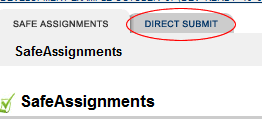
- Click on the Direct Submit Tab
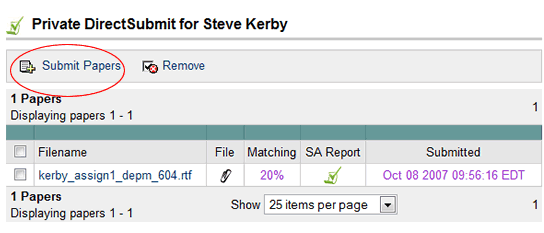
- Click on the Submit Papers button
- Note: In the example below, there is already a paper uploaded. All papers you upload yourself will show up each time you access DirectSubmit, regardless of which class you use the tool from.
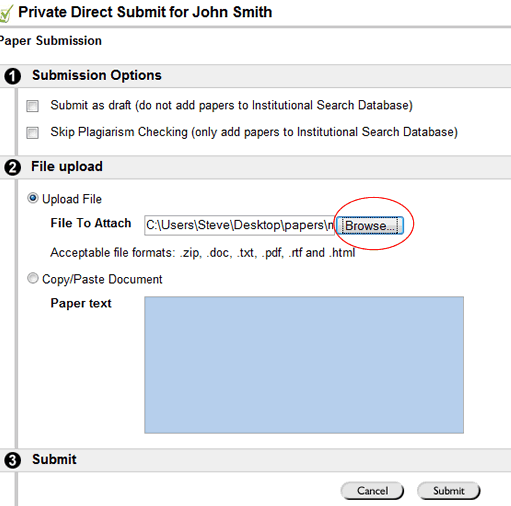
- click on the Browse button and select the paper from your computer
- Note: The option to "Submitting as draft" is somewhat misleading. All that means is that the paper will not be added to the institutional database. It does not mean that you (or students) have the opportunity to re-submit.
- For the purposes of our workshop training--or for practice--clicking on Submit as draft is a good idea.
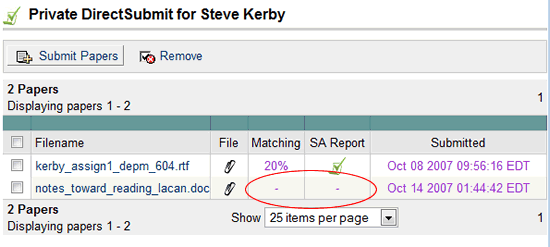
Note in the example above, the report has not yet been generated. Depending on the time of day and time of year, the process can take anywhere from a few minutes to an hour or so
In this case, it was just a few minutes. The Report is announced below.
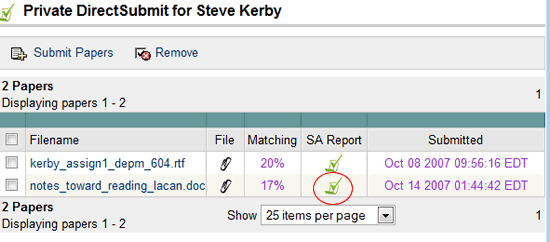
- Click on the Green Check (example above) to view details of the report.
Areas of suspected plagiarism will be highlighted. Click on those areas, and you will be taken to the original source.
|
| 3. SET UP SAFEASSIGNMENT FOR STUDENTS TO SUBMIT |
The following directions are appropriate if you wish to require all your students to upload to SafeAssign as a condition of the assignment. This automatically creates a column in the gradebook, and you can assess each submission, along with its originality report, via the gradebook.
FIRST,
add a Content Area to the Main Course Menu
- click
on Control Panel
- click
on Manage Course Menu
- click
on the "+Content Area" Button at top of the screen
- enter "SafeAssign" (or "Turn in Papers," etc) in the input box (note: whatever you
enter in the second input box will trump whatever is in the
arrow box)
- Submit and OK
SECOND, add a SafeAssign component to your Class
- From the class view, flick on the appropriate Content Area (e.g. "SafeAssign")
- click on Edit View at the top right of the screen
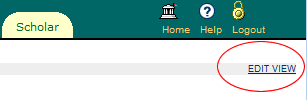
- click on arrow at the far right of the tool bar
- scroll down and select SafeAssign
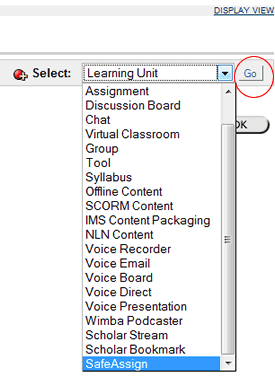
- Click on Go
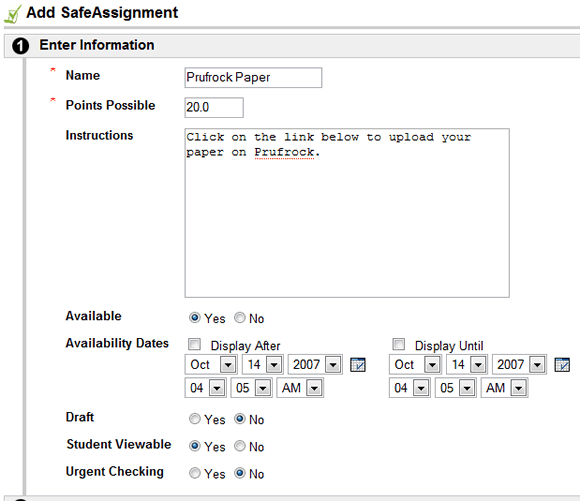
- Fill out the text boxes appropriately.
- Note 1: Once again, the Draft Option merely keeps the paper out of the institutional database; it does not give the student the ability to re-submit.
- Note 2: Student Viewable allows the student to see the same originality report you see.
|
| 4. LOG
IN AS A STUDENT AND SUBMIT PAPER |
If, to understand the process, you wish to submit a paper as a student.....
- Log out as instructor and Sign Back in as one of the fake students enrolled in your class.
To Submit a Paper as a Student:
- Enter the class (as a student) and click on SafeAssign (or whatever content area contains the SafeAssignment)
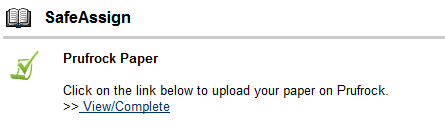
- The student first sees the following
- After clicking on "View/Complete" the student sees the following
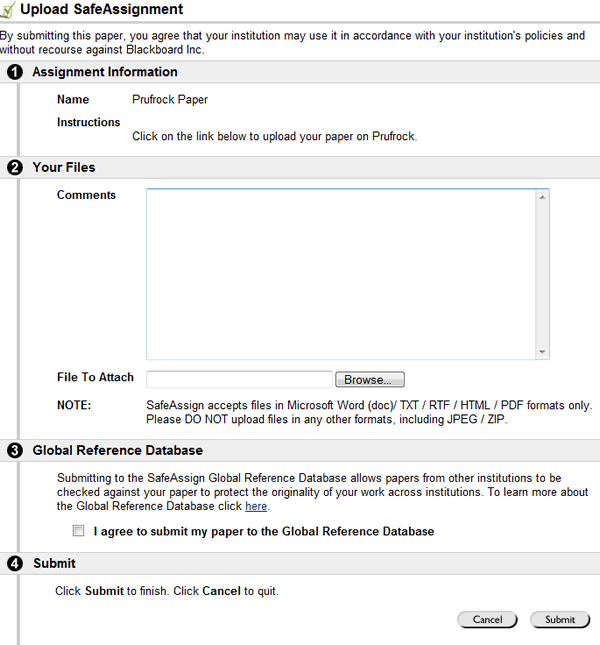
Note: The student has the option of contributing to the so called "Global Reference Database." If the student does not check the box, the paper will just remain in the McDaniel Database, although it will be compared with the Global Reference Database (built by Blackboard), the Internet, the McDaniel database, and the ProQuest ABI/Inform database (with over 1.100 publication titles and over 2.6 million articles).
For the Student to Check on the Originality Report:
(It takes a few minutes for the report to be generated.)
- Click on the Content Area that contains the SafeAssignment
- Click on View/Complete
- Click on OK to view Results
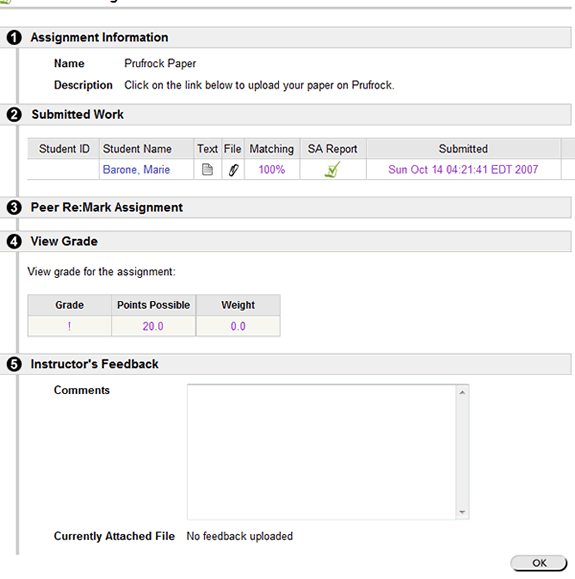
- An example (from student view) of a plagiarized paper is below
|
| 5. ACCESS
SAFEASSIGNMENT FROM GRADEBOOK |
Log out as student, then log back
in as instructor.
To check on SafeAssignment submissions:
- Control Panel --> Gradebook
- Click on the Exclamation Point to access the paper and the
SafeAssign originality report
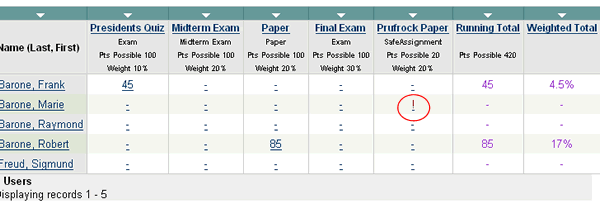
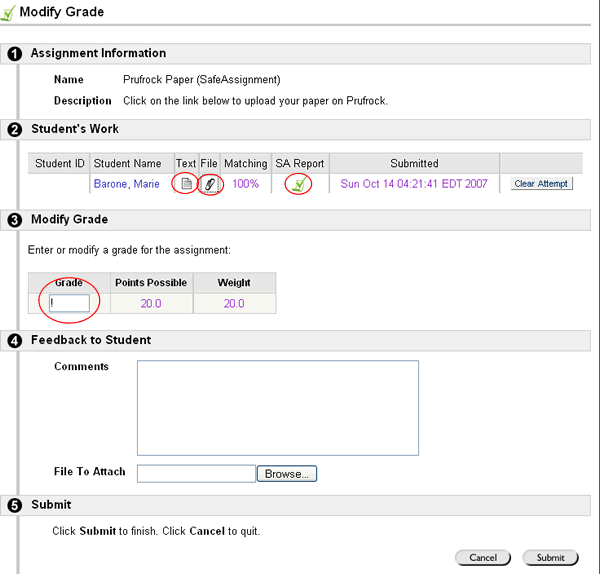
- click on Text icon to see just the text of the turned-in
assignment
- click on the File icon to download the actual document
- click on the SA Report icon to see the originality report
|
Other
Blackboard Workshops
|| Blackboard SafeAssign || Blackboard
Basics|| Pimp My Blackboard Class ||
Other
InTech Tutorial/Workshops
|| Blogs || Wikis || ePortfolios || iScholar || Podcasting
with Wimba ||
|| PowerPoint
Basics || PowerPoint and
Multimedia ||
|
|