
Add a New Post
Objective:
Add and categorize a new post on your blog.
Steps:
- Click My Dashboard; click Write and then click Write Post.

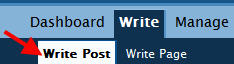
OR, as a shortcut, in View mode, click New Post.

- Type a title for the new post in the Title field.
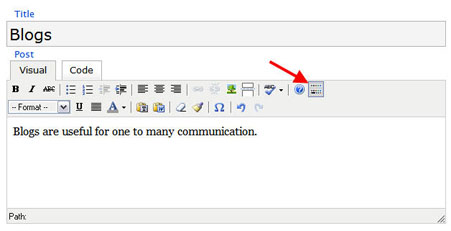
- Click the Advanced Toolbar icon to reveal additional tools available in the WYSIWYG editor; add content in the Post field.
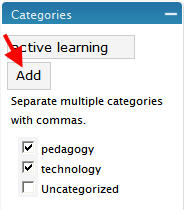
- In the Categories box to the right of the screen, type a category name for the new post and click Add OR select an existing category.
- Click Save to save the post as a draft (to edit and publish later) OR click Publish to save and publish the post immediately.
Note: There are several options below the Post field for adding files and multimedia . . .
Upload - Use this tab to attach a file (e.g., PowerPoint presentation, Word document, image) to the post. The maximum file size allowed is about 75 mb.
Videos - Use this tab to embed a YouTube or Google video in your post. To do this, the video must already be on a YouTube or Google Video site (if it is not, you will need to go to the site and upload it). Be sure to click Send to Editor after you paste the URL to the video in the appropriate field; Send to Editor will place code for the video in the Post field.
You Tube instructions
Google instructions
Slideshows - Use this tab to add a slideshow from any of the suggested slideshow hosting sites. To do this, the slideshow must already be on the slideshow site.