 |
At
the end of this workshop, participants will be able to:
- Add announcement
- Work
with course menu (create content areas, rename
and reorder menu, add URL)
- Work
with course settings (turn class on and off,
edit title, change colors, etc.)
- Work
with user database (add/drop/remove, change
passwords)
- Upload
material (syllabus, presentation, image; use WYSIWYG
editor)
- Copy
course from one section to another
|
 Our
overall goal today will be to get comfortable with the software and
learn how to Upload and Organize Course Content.
Our
overall goal today will be to get comfortable with the software and
learn how to Upload and Organize Course Content. |
| A. TOUR
OF THE TOOLS |
Two
Key Links:
(1) Control Panel
(2) Edit
View
Once
you log in to your class, there are two key links that
you must know about. These two links give you access to all
the tools you need to design and develop your Blackboard course.
1.
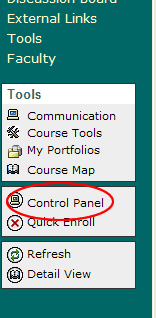
The first key link is the
Control Panel located at
the bottom of the the Main Course Menu on the left.
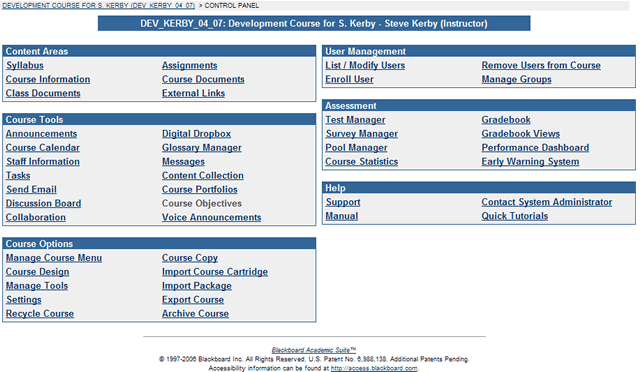
This
is the "Magic Button" which takes you to the
backend of the class, where you have access to all the
course tools.
(2)
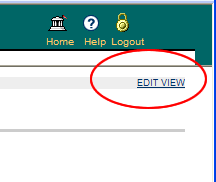
The other key link is the Edit View link you
will find at the top right of the page any time you click
on a Content link from the main course menu.
This is the best tool to use for uploading content.
For example,
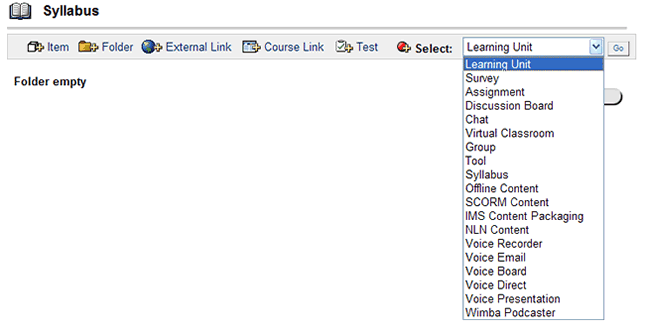
click on Syllabus, and at the top right of the page, you
should see Edit View. Click on that, and you get the tools
to upload material.
We'll come back to these two key links at the end of the workshop when we start to upload material.
|
| B.
ADD ANNOUNCEMENT |
To add an announcement:
- Click on Control Panel
- Click on Announcement (under Course Tools)
- Click on Add Announcement Button
- And you get the following screen:

- Add the text you wish to show up in the WYSIWYG window. Make certain you also add text in the Subject header
- Note: if you wish the announcement to stay up longer than 7
days, click on Yes next to Permanent announcement.
- Note: you can restrict or determine dates you wish the announcement to appear by clicking on the date options. If you Ignore this section, the announcement by default will appear for 7 days
- Scroll Down and click on Submit
|
| C.
WORK WITH COURSE MENU |
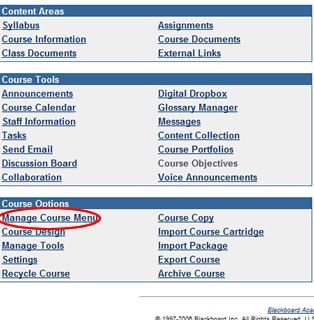
Setting up the Course Menu is
the key strategy in setting up your class design, and the basic tool to manage the course menu is the Manage
Course Menu link.
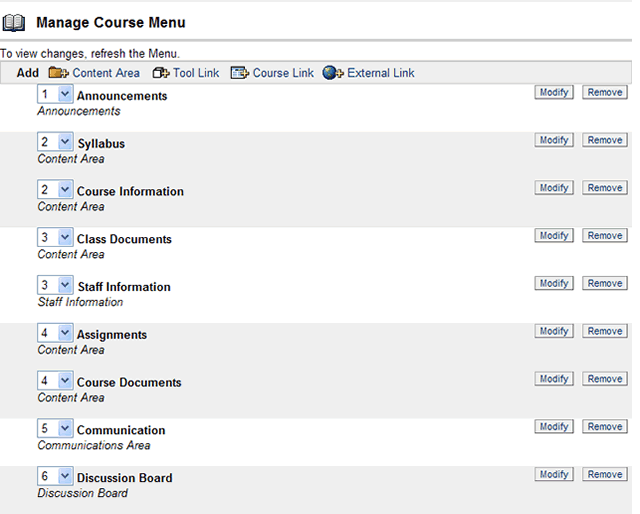
Note that you can add a Content area, or a Tool Link, or a Course Link or an External link. You get slightly different tools, depending on what you select.
Content areas are simply holding spaces in your Blackboard class where you can upload Word documents, PowerPoint presentations, Excel spreadsheets, etc. Or you can simply use the WYSIWYG editor to enter text directly.
Examples of content areas in a default class set up are: Syllabus, Course Information, Class documents, Assignments, and Course Documents.
You can remove or rename those content areas.
To Remove a Content Area (this will remove it from your Main Course Menu)
- click on Control Panel
- click on Manage Course Menu
- click on the Remove Button at the right of the page that corresponds to the content area you wish to remove
To Rename a Content Area (this will rename it on your Main Course Menu)
- click on Control Panel
- click on Manage Course Menu
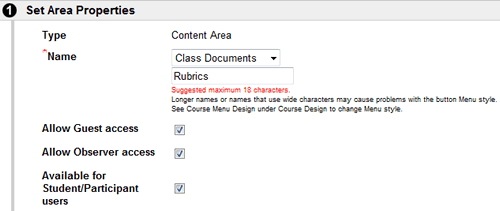
- click on the Modify Button at the right of the page that corresponds to the content area you wish to rename
- enter the new name of the course link in the second input box (below the one with the arrows). Note: whatever you enter in the input box will trump whatever is in the box with the arrows
- Scroll Down and click on Submit
To ADD a Content Area to the Main Course Menu
- click on Control Panel
- click on Manage Course Menu
- click on the "+Content Area" Button at top of the screen
- you can use the arrows in the top input box to select an appropriate name, or enter text in the second input box (note: whatever you enter in the second input box will trump whatever is in the arrow box)
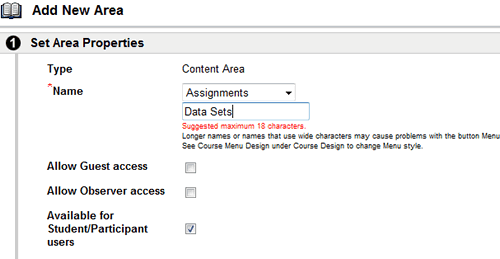
- Scroll down and click on Submit
External links are an excellent way of bringing in Web content from outside the class into the class. To Add an External Link to the Main Course Menu
- click on Control Panel
- click on Manage Course Menu
- click on the "+External Link" button
- enter in the name box what you want to appear on the main course menu
- enter the URL (complete with http://) in the URL box
- Click on Submit
Course links are ways you can use the main course menu to make it easier on your students to find particular course tools or links.
Note: Using the manage course menu, you can make a link on the main course menu to any area, folder, subfolder, discussion, or tool in Blackboard.
For instance, you may use the Digital Drop Box frequently in your class and want to make a link on the main course menu.
To Add an Course Link (in this case, a link to the Digital Drop Box)
- click on Control Panel
- click on Manage Course Menu
- click on the "+Course Link" button
- enter in the name box what you want to appear on the main course menu (in this case Digital Drop Box)
- click on the browse button, which will open a new window containing a Course Map
-
- with your cursor, select the appropriate section of class you wish to link to (in this case, the Digital Drop Box under Tools)
- Click on Submit
|
| D.
WORK WITH COURSE SETTINGS |
Make Class Available
All
course shells are delivered to you "unavailable" (or turned
off). Students
enrolled in your class will not see your course link on their
welcome screens until you make the course available.
To Make Your Class Available:
- click
on Control Panel
- click on Settings--> Course Availability
- select yes
- Submit
Other Course Settings
You can ignore most other links here. But note you can change
the course name, and set course entry point.
Don't Forget: When you are ready for students to enter your
class, you must make it available!

You can change course colors and add buttons as course links instead of the default text links.
To Change Course Colors:
- click on Control Panel
- click on Course Design
- click on Course Menu Design
- under Select Style Properties, click on the pick button next to Select background color for Menu
- this brings up a color pick window; select the color you want
- click on the pick button next to Select text color for Menu to change the color of the text on the main course menu
- this brings up a color pick window; select the color you want
- Submit
To Change Menu style from text to button (or vice versa)
- click on Control Panel
- click on Course Design
- click on Course Menu Design
- under Select Menu Style, click on Buttons or Text radio buttons
- if you select Buttons, under Select Style Properties, you will be given dozens of options for button styles and colors; make your selection
- click on Submit
|
| E.
WORK WITH USER DATABASE |
Course
shells are delivered to you with students enrolled. All enrollments are done automatically, with data coming over daily from Archway.
To list o, modify users, see the Control Panel links under User Management
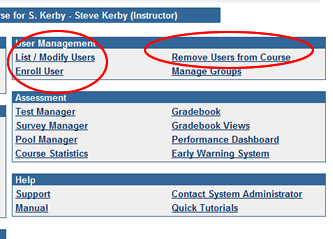
To See A List of Your Enrollments
- click on Control Panel
- click on List/Modify Users
- click on the Search Button as a shortcut to list everyone
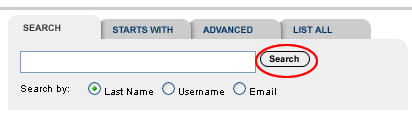
You will see a list of user names, usernames, their email addresses, roles in the class, a link to change their passwords, and a link to their properties.
To search for a particular individual by last name, enter JUST the last name (don't add commas or first name) and click on Search.
By clicking in the appropriate radio button, you can also search by username or email address.
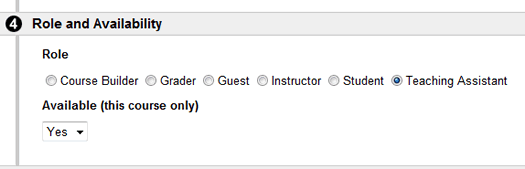
To Change a User's Role
- click on Control Panel
- click on List/Modify Users
- click on the Search Button as a shortcut to list everyone
- click on the Properties button to the right of the users's name
- scroll down to the bottom of the page
- select the appropriate role
- click on Submit
Changing Passwords
Since all McDaniel students, faculty, and staff have one McDaniel username and password, we can no longer change passwords from within Blackboard.
To change one's Blackboard password requires changing one's password for all systems (Archway and email).
To change your McDaniel password, go to Password Management Login. To Add (Enroll) a User
- click on Control Panel
- click on Enroll User
- enter user's last name (and last name only; do not add comma and first name)
- click in the box at the far left of the page under ADD
- click on Submit
To Remove a User
- click on Control Panel
- click on Remove Users from Course
- enter user's last name (and last name only; do not add comma and first name) or.. just click on the Search button to list all
- click in the box at the far left of the page under Remove
- Enter "Yes" in the box above Submit (the "Y" must be in upper case)
- click on Submit
Note: you can only remove a user who is not registered in the class via Archway.
|
| F.
UPLOAD MATERIAL |
You can upload material by going to the Control Panel, and clicking on the appropriate links under Content Areas.
But the easiest way (and instructions here will follow) using the Edit View link on the content areas.
To Upload Content (for instance, a Syllabus):
- click on Syllabus on the Main Course Menu
- click on Edit View at the top right of the screen
- click on "+Item" at the top of the screen
- to upload a Word document:
- enter "Syllabus" in the Name input box
- skip the WYSISYG editor
under Content, click on the Browse Button next to Attach Local File
navigate in your computer, select your Syllabus (Word document) and click on Open
- scroll down and click on Submit
-
to enter text (or copy/paste from a Word document)
- enter "Syllabus" in the Name input box
- start entering text in the WYSIWYG editor... or copy/paste from a Word document
- skip the other Content features
- scroll down and click on Submit
To upload any content to any content area, you would follow the same procedures as above--just select the appropriate files (such as a PowerPoint presentation) and name them accordingly.
Folders and subfolders are great ways of organizing/reorganizing content.
To Add a Folder to a Content Area (for instance Course Documents)
- click on Course Documents on the Main Course Menu
- click on Edit View at the top right of the screen
- click on "+Folder" at the top of the screen
- enter the name in the name box
- you can skip entering text (unless you want to annotate the folder or say what's in it)
- scroll down and click on Submit
To Move Content from one folder to another
- click on a Content Area on the Main Course Menu (such as Course Documents)
- click on Edit View at the top right of the screen
- click on the COPY button (next to the content piece you wish to move)
- keep the Destination Course the same (unless you wish to move the content to another course)
- click on the Browse Button next to Destination Folder
- you will see a new window with a course map; navigate in that window to the folder or subfolder you want to send the content to, and select it
- if you wish to remove the content piece from it's current position click on Remove item after copy
- scroll down and click on Submit
. |
| G.
COPY COURSE |
Each semester, you will be given a new course shell with a new course ID (and new students enrolled).
To copy components of an old class (or the entire class) to the new Course Shell:
- go into your "old" class
- click on Control Panel
- click on Course Copy (Under Course Options)
- click on Copy Course Materials into an Existing Course
- click on the Browse button next to Destination Course ID
- in the new window, click on the Instructor radio button and enter your username

- click on the Search Button and select the course you wish to send the material to
- under Select Course Materials, put a check in all items you want to send over;
- note: if you want to keep your course colors, make certain you select Settings
- note: if you want to keep gradebook items and tests, make sure you click on both buttons
- Scroll down and click on Submit
|
|
|
Other
Blackboard Workshops
|| Blackboard SafeAssign || Blackboard
Basics|| Pimp My Blackboard Class ||
Other
InTech Tutorial/Workshops
|| Blogs || Wikis || ePortfolios || iScholar || Podcasting
with Wimba ||
|| PowerPoint
Basics || PowerPoint and
Multimedia ||
|
|
