| Favorites-Internet Explorer |  |
Linda Kilcoyne
SLM 521
Summer 02
Module #2
| Favorites-Internet Explorer | |
|
Objective |
Students will be able to save sites using "Favorites" on Internet Explorer. | ||||||||
| Introduction | With the huge
volume of information on the internet, users need a way to retrieve sites they may want to use later. Internet Explorer allows users to save and organize sites for later use. Once a web site or page has been saved the user may simply click on the title and the site will be displayed. |
||||||||
| Activity |
Using Internet Explorer as your browser,
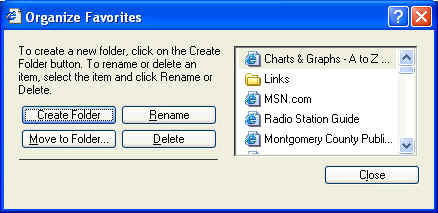
go to any web site. On the tool bar You can organize your favorites into folders. Click on "organize..." A dialogue box appears. You can create a folder, move to folder, rename, or delete. If you want to rename a favorite, click to highlight it, then click on Rename. Type in a new name and close. To create a folder, click Create
Folder, and a folder icon appears in the field. Type in a name for
the
folder. To add favorites to your new folder highlight |
||||||||
| Assignment | You will save 6 sites
to Favorites. You will name them, create a folder and move two of the Favorites into the folders. Your favorites will need to be named. Your folder will also need a name. Open the folder so all contents are displayed. Then post a picture of your Favorites to your web site.
|
||||||||
| Rubric |
|