
Add a Basic Portfolio
Objective:
Add a Basic Portfolio to your My Portfolios page.
Steps:
- Click the Content Colllection tab from within your Blackboard account.

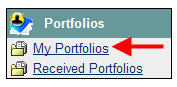
- Click My Portfolios in the left navigation bar.
- Click Add Basic Portfolio.

- Complete the fields on the Add Basic Portfolio screen:
In the Portfolio Information section, type a title for the portfolio in the Title field and a description in the Description field.
In the Portfolio Menu Style section, select the navigation menu style and colors.
In the Portfolio Availability section, select Yes (or No) to make your portfolio available (or unavailable) to other users.
In the Comments Options section, select whether comments made on the portfolio will be Shared or Private.
Click Submit when done.
To access the portfolio on future logins:
- Click the Content Colllection tab from within your Blackboard account.
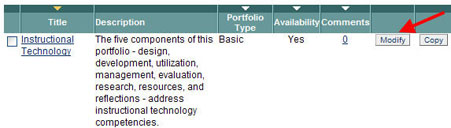
- Click My Portfolios in the left navigation bar; a list of the portfolio(s) you have created will be displayed.
- To add content, link(s) and/or items to the portfolio, click the Modify icon that corresponds to the portfolio name.
OR
To view the portfolio, click on the Title of the portfolio.