
Manage Content Collection
Objective:
Manage files, folders, and links in your Content Collection.
Steps:
- Click the Content Colllection tab from within your Blackboard account.

Your user folder appears under My Content.

Note: Before adding any content to the Content Collection, decide how to best organize it into folders. If you re-organize content in the Content Collection after you have created a portfolio with it, the content in your portfolio will not show up because the links will be broken.
There are two options for managing files, folders and links in your Content Collection:
Option 1 - Using the Content Collection menu bar
Option 2 - Using the Web Folder
Option 1 - Manage content using the Content Collection menu bar

- Add content in any order, but usually beginning with folders and subfolders and following with files and links:
To add a folder, click the +Folder icon and type in a name for the folder; click Submit.
To add a subfolder, click on the folder to which you want to add a subfolder. Click the +Folder icon and type in a name for the subfolder; click Submit.
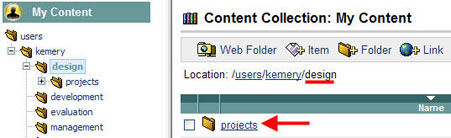
In the screen above, a subfolder named "projects" was added to the folder named "design."
To add a file, click the +Item icon. Next to the File field, click Browse and select a file to add from a drive on your computer; click Submit.
Note: To add a file to a specific folder or subfolder, click on the name of the folder where the file belongs before clicking on +Item.
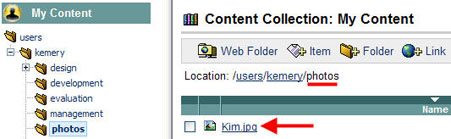
In the screen above, a file named "Kim.jpg" was added to the folder named "photos."
To add a link, click the +Link icon and type in a name for the link in the Link field and type/paste the Web address in the URL field; click Submit.
- Copy content as needed:
To copy a folder/subfolder, click the box to the left of the folder name and click the Copy icon. Click Browse to select the destination folder; then click Submit.
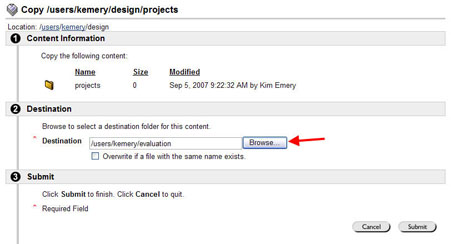
In the screen above, the folder named "projects" will be copied to the folder named "evaluation."
To copy a file, click the box to the left of the file name and click the Copy icon. Click Browse to select the destination folder; then click Submit.
To copy a link, click the box to the left of the link name and click the Copy icon. Click Browse to select the destination folder; then click Submit.
- Move content as needed:
To move a folder/subfolder, click the box to the left of the folder name to be moved and click the Move icon. Click Browse to select the destination folder; then click Submit.
To move a file, click the box to the left of the file name to be moved and click the Move icon. Click Browse to select the destination folder; then click Submit.
To move a link, click the box to the left of the link to be moved and click the Move icon. Click Browse to select the destination folder; then click Submit.
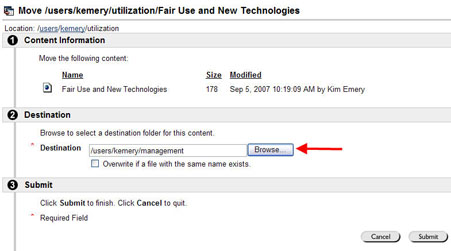
In the screen above, the "Fair Use and New Technologies" link will be moved to the "management" folder.
- Delete content as needed:
To delete a folder/subfolder and all of its contents, click the box to the left of the folder name and click the Remove icon.
To delete a file, click the box to the left of the file name and click the Remove icon.
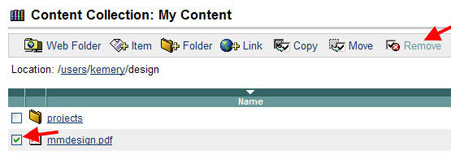
In the screen above, a file named "mmdesign.pdf" will be deleted from the folder named "design."
To delete a link, click the box to the left of the link name and and click the Remove icon.
Option 2 - Manage content using the Web Folder
- Click the Web Folder icon.
Note: If you are not using a Windows-based computer and Internet Explorer as your browser, you may be prompted to set up a WebDAV folder. If so, follow the directions provided on the screen.
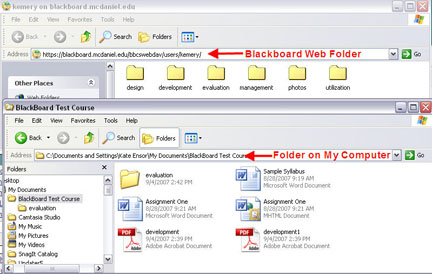
- Copy and paste (or drag) folders, subfolders and/or files from any drive(s) on your computer to the Blackboard Web folder. Manage folders and files (i.e., move, copy, delete, rename, etc.) within the Web Folder as desired.
Note: To add a link to your Content Collection, use the method in Option 1 instead.