
Add a Link
Objective:
Add an external link to your e-portfolio.
Example:

In the screen above, the selected Web page is linked from the Resources menu item.
Steps:
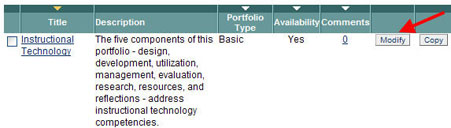
- Click the Modify icon that corresponds to the portfolio to which you will add an external link.
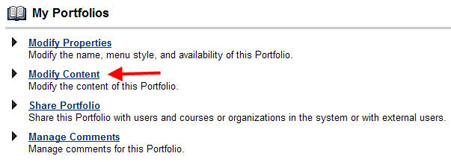
- Click Modify Content.
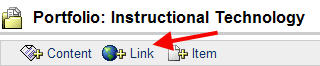
- Click the +Link icon.
- Type a Menu Item Name and a URL for the link on the Add Link screen; click Submit.
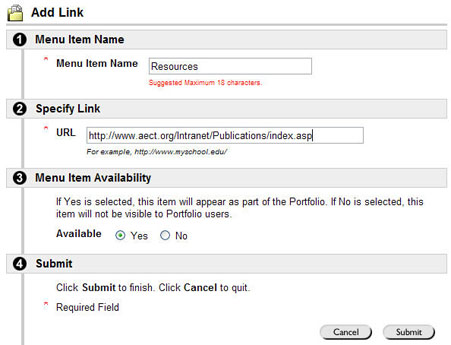
In the screen above, the "Resources" menu item will link to a Web page on www.aect.org.
- Repeat Steps 3 and 4, as needed, to add additional links to your e-portfolio.