
Add an Item
Objective:
Add an Item to your e-portfolio.
Example:
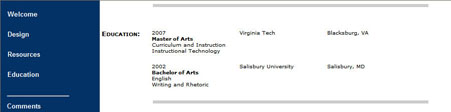
In the screen above, the Education Template Item was used to create the Education page.
Example:

In the screen above, a Blank Item was used to create the Welcome page.
Steps:
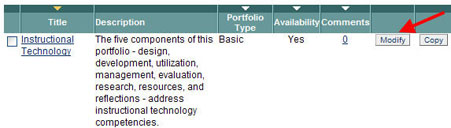
- Click the Modify icon that corresponds to the portfolio to which you will add an Item.
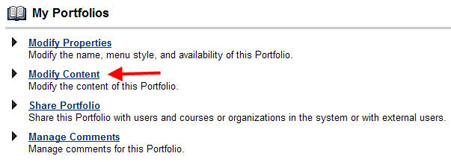
- Click Modify Content.
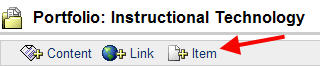
- Click the +Item icon.
There are two options for adding an Item to your e-portfolio:
Option 1 - Using a template
Option 2 - Using a blank Item
Option 1 - Add an Item using a template
- Select a template to use on the Add Item screen; click Submit.
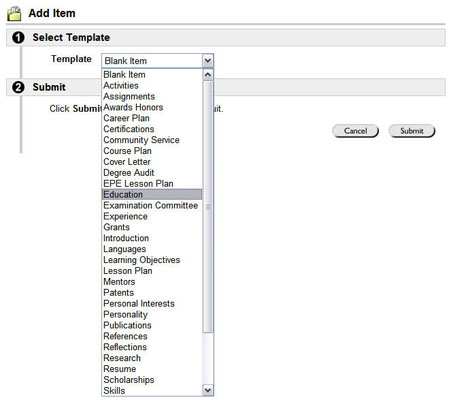
In the screen above, the Education template is selected.
- Type a Menu Item Name.
- Complete (and edit, as needed) the data in the template, using the WYSIWYG editor.
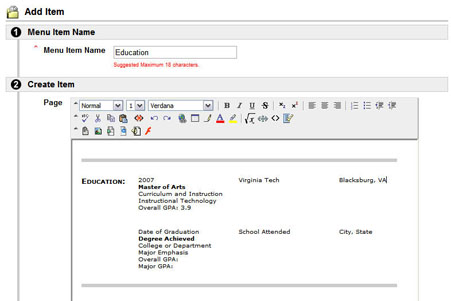
In the screen above, data was added to the Education template.
- Click Submit when done.
- Select Blank Item on the Add Item screen; click Submit.
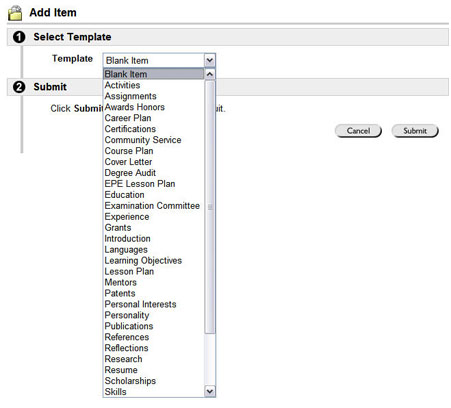
In the screen above, Blank Item is selected.
- Type a Menu Item Name.
- Use the WYSIWYG editor to add and format any information desired on this page.
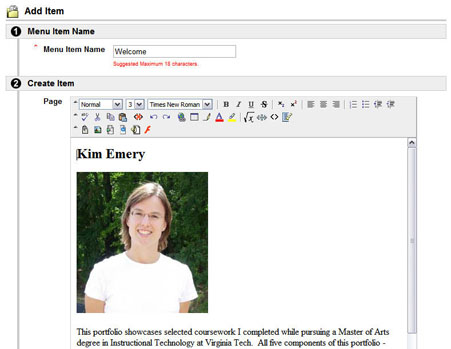
In the screen above, data was added to the Blank Item.
- Click Submit when done.