
Add Content
Objective:
Add content from your Content Collection to your e-portfolio.
Example:
In the screen above, the "design" folder and all of its contents are linked from the Design menu item.
Steps:
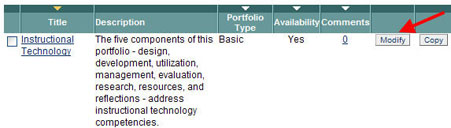
- Click the Modify icon that corresponds to the portfolio to which you will add content.
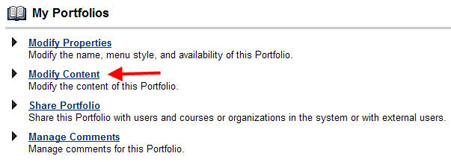
- Click Modify Content.
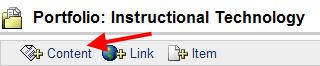
- Cick the +Content icon.
- Type a Menu Item Name and click Browse to select a file or folder to be linked to the Menu Item; click Submit.
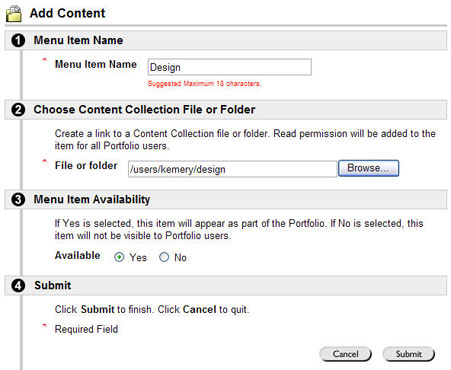
In the screen above, the "design" folder and all of its contents will be linked from the Design menu item.
- Repeat Steps 3 and 4, as needed, to add additional content to your e-portfolio.