
View and Comment on a Portfolio
Objective:
View and add a comment to an e-portfolio created by another McDaniel Blackboard user.
Steps:
- Click the Content Colllection tab from within your Blackboard account.

- Click Received Portfolios.
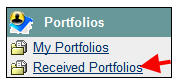
- Click the name of the e-portfolio to view and comment on.
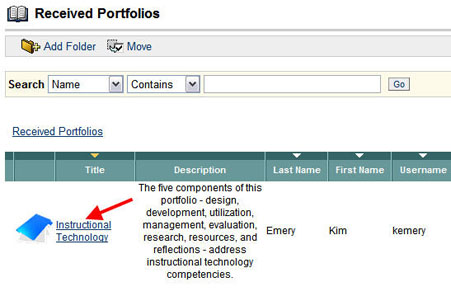
In the screen above, Sigmund Freud has the option to view the Instructional Technology e-portfolio shared by user Kim Emery.
- After viewing the e-portfolio, click Comments.
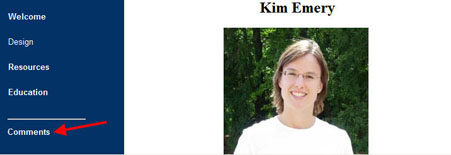
Note: If the Comments link is not available, the creator of the e-portfolio disabled the option.
- Click Add Comment.

- Type a Comment and format it as desired with the WYSIWYG editor.
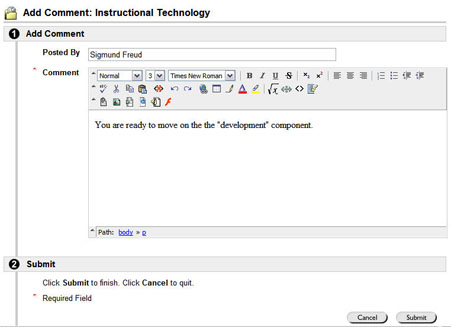
- Click Submit.
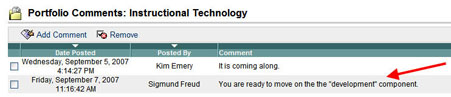
In the screen above, Sigmund Freud's comment was added to the e-portfolio.