You will be using a website to investigate and practice measuring angles, and then you will be asked to create and measure one acute and one obtuse angle. You will save a picture of your work by creating a screen shot and pasting the screen shot into a new Word document.
Instructions:
| Step
1: |
Go
to http://www.amblesideprimary.com/ambleweb/mentalmaths/protractor.html
and watch
the short
introduction video until it begins to repeat. Select
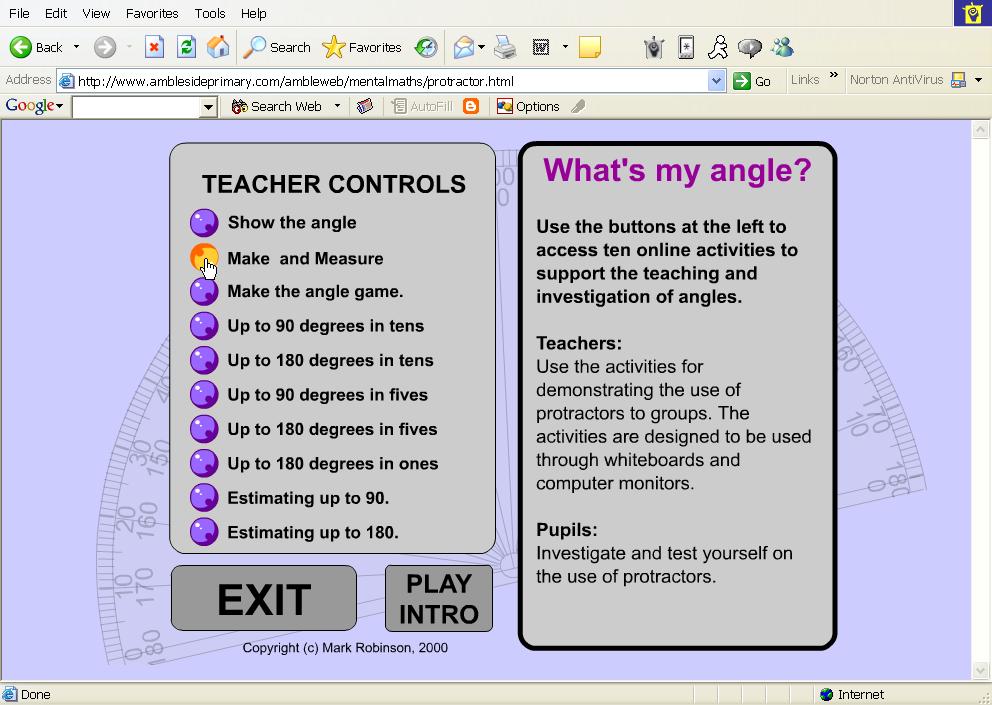
"Skip Intro." Then, select "Make and
Measure." See example.
|
| Step 2: |
Click on the +
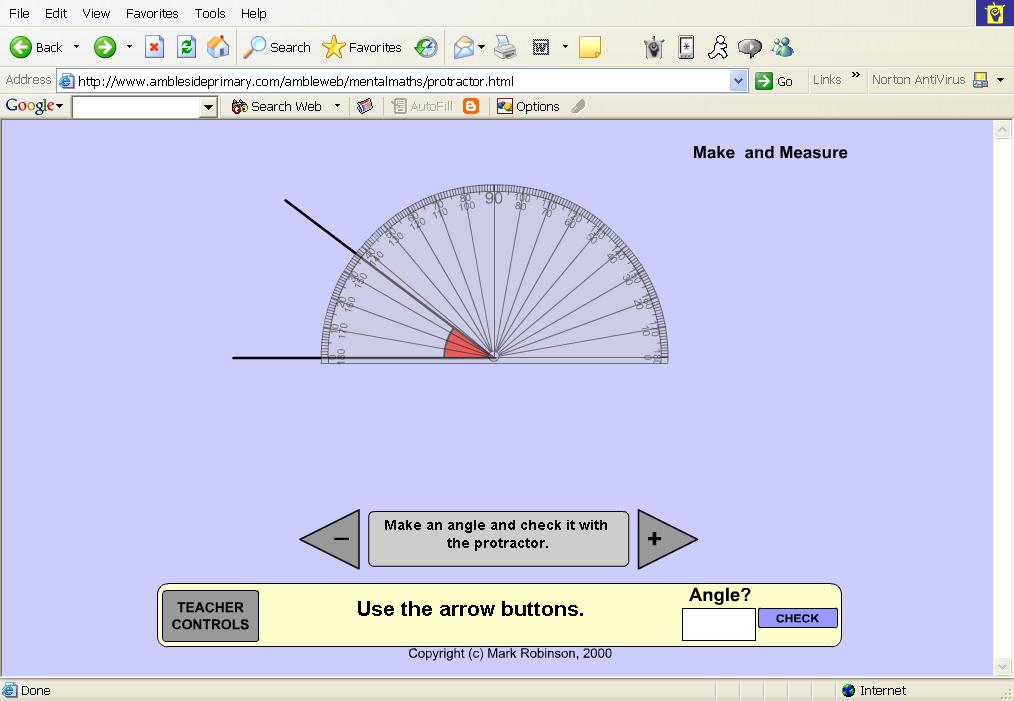
sign to create an acute angle. Then, click and drag the
protractor to the correct
place for
measuring the angle. See
example. |
| Step
3: |
Type
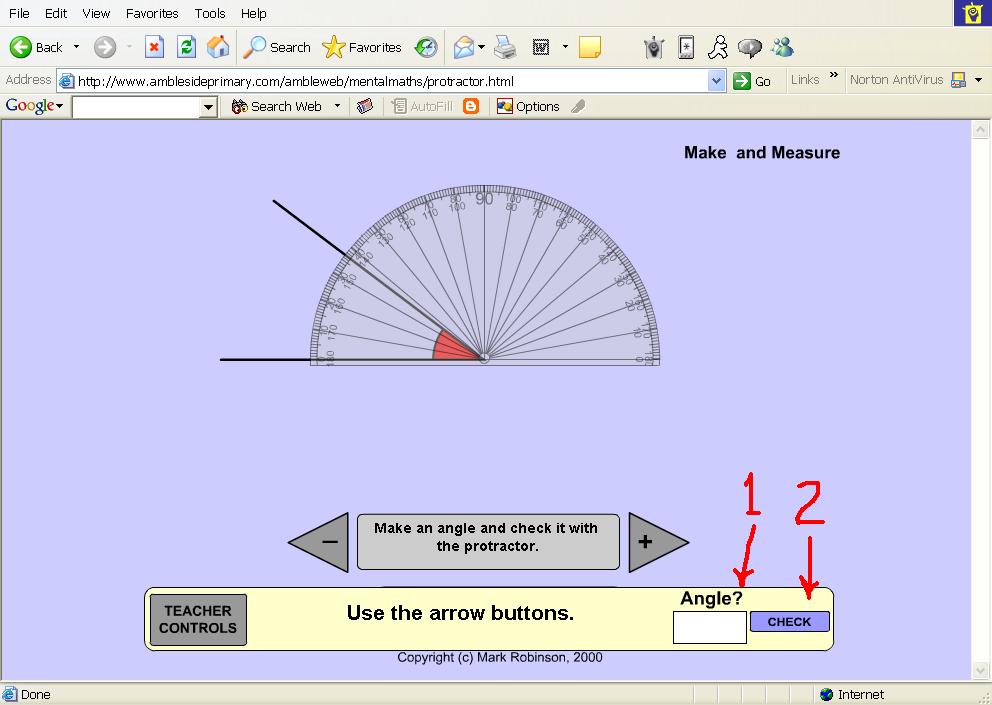
your angle measurement into the box
in the lower right corner of the screen, and click
"Check"
to see if you
are correct. See angle box and "Check"
button. |
| Step 4: | If
you are correct, you will get a
"Perfect!" message. Move the protractor to the angle again,
type in the
angle measurement, but do not click "Check" this time. See
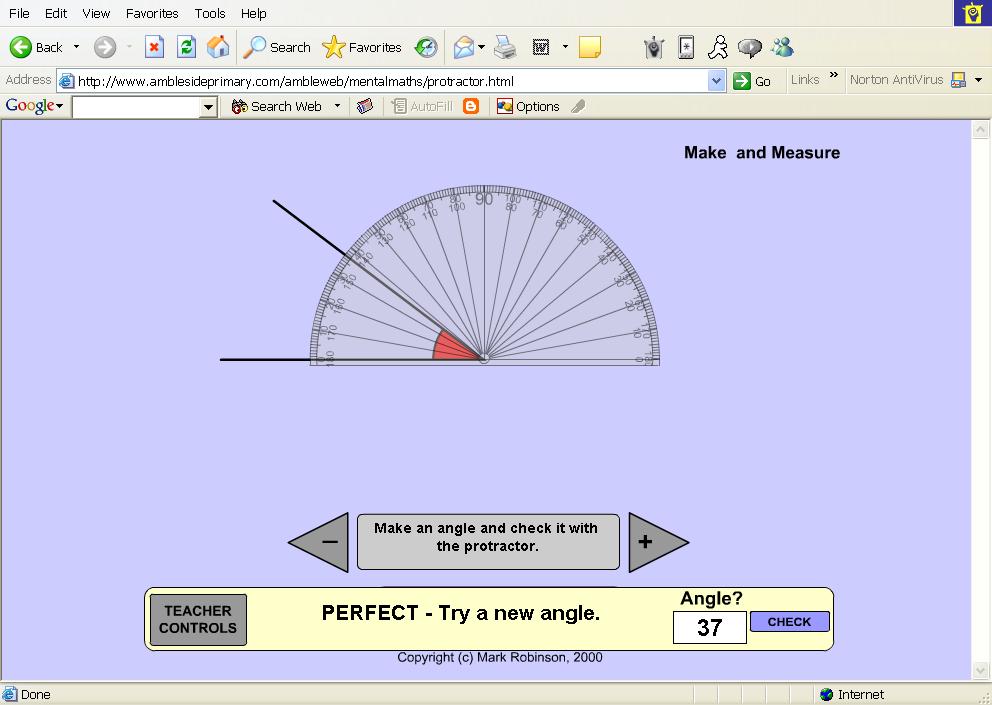
example. |
| Step
5: |
Make
a screen shot by pressing "Ctrl" and
"Print Scrn" keys at the same time, and then "Ctrl"
and "C" keys.
Open a new Word document and press "Ctrl" and "V" keys to paste your
screen shot into the Word document. Save this as "Acute
angle-(your name)" in your own folder. |
| Step
6: |
Repeat
this entire process, but this time
make an obtuse angle and label the saved Word document "Obtuse
angle--(your name)." |
Make and Measure Button
Click on the button highlighted in orange below.
Proper Protractor Placement
This is how you should place the protractor.
Angle box
First, click on the white box and type the measurement of the angle. Then, click the "Check" button.
Screen Shot
This is what your acute angle screen shot should look like. Notice that the correct angle is typed in the box and the "Perfect" message is showing.